Change of payment details / change of Giro account in Fortnox
To add new payment details to invoices that are to be financed via Invoier, you need to create a new bank account in Fortnox. This bank account is then selected as the default account for customer invoices. This is done as follows.
Step 1
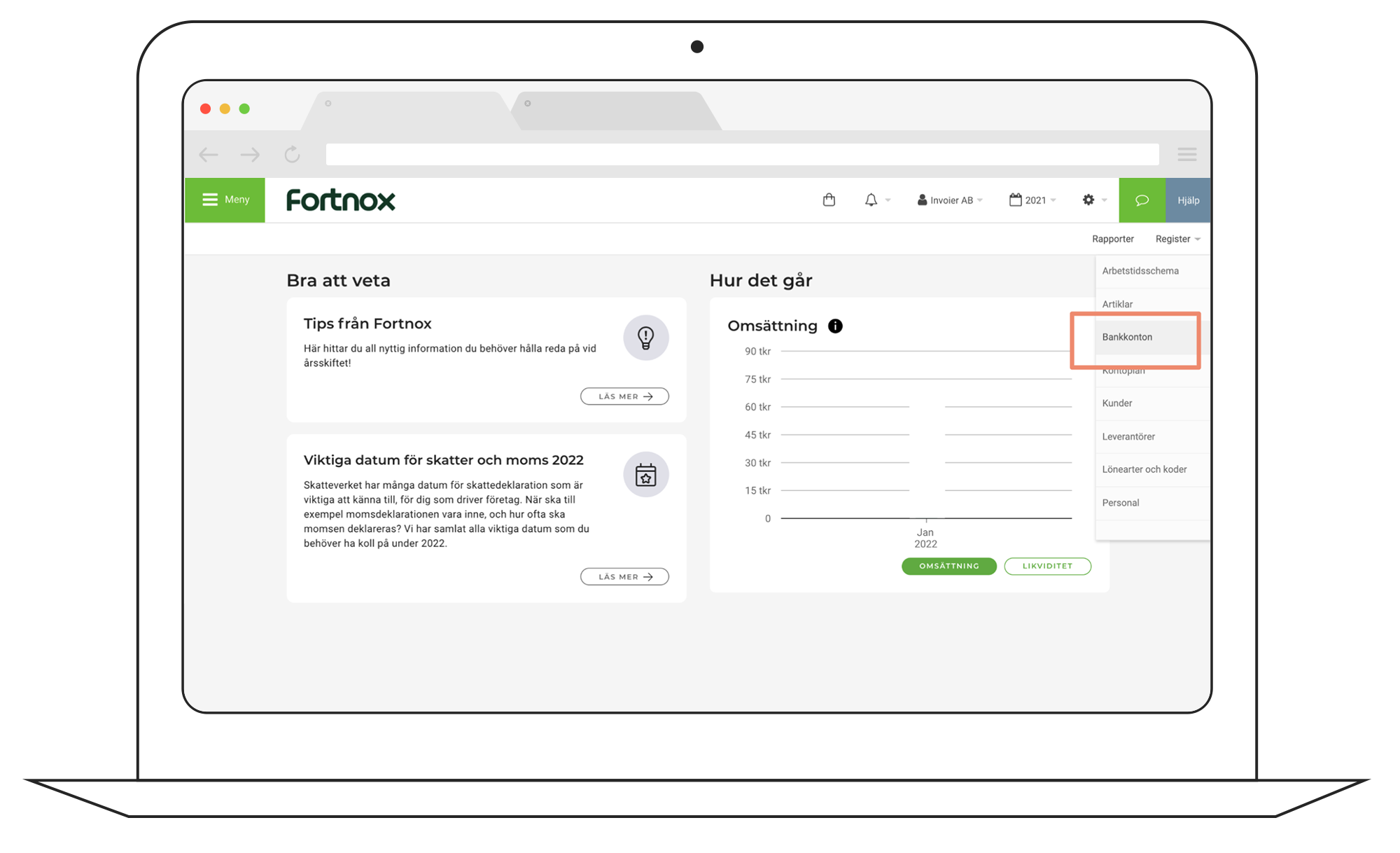
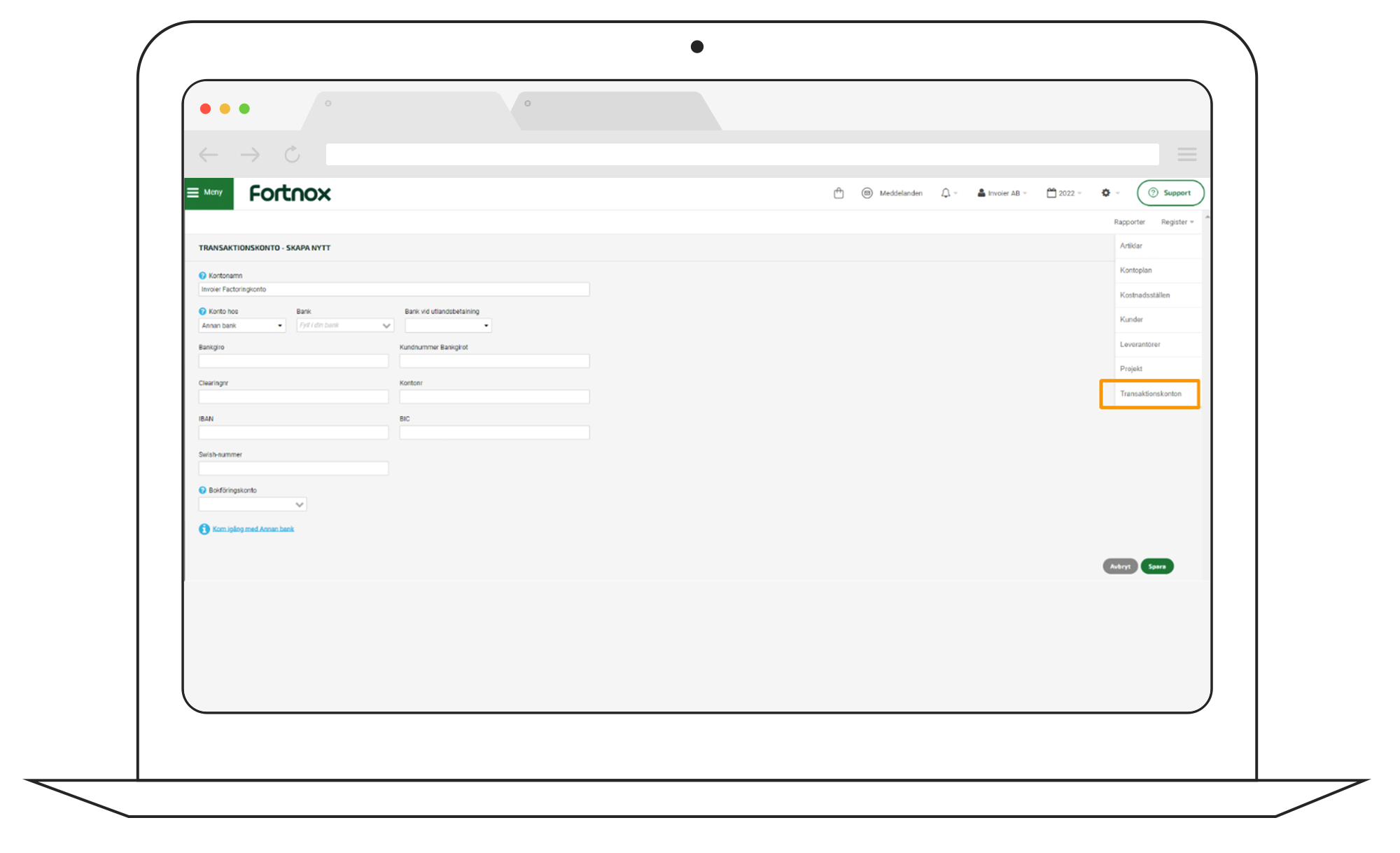
Click on Register and select Bank account (sometimes called Current account)
Step 2
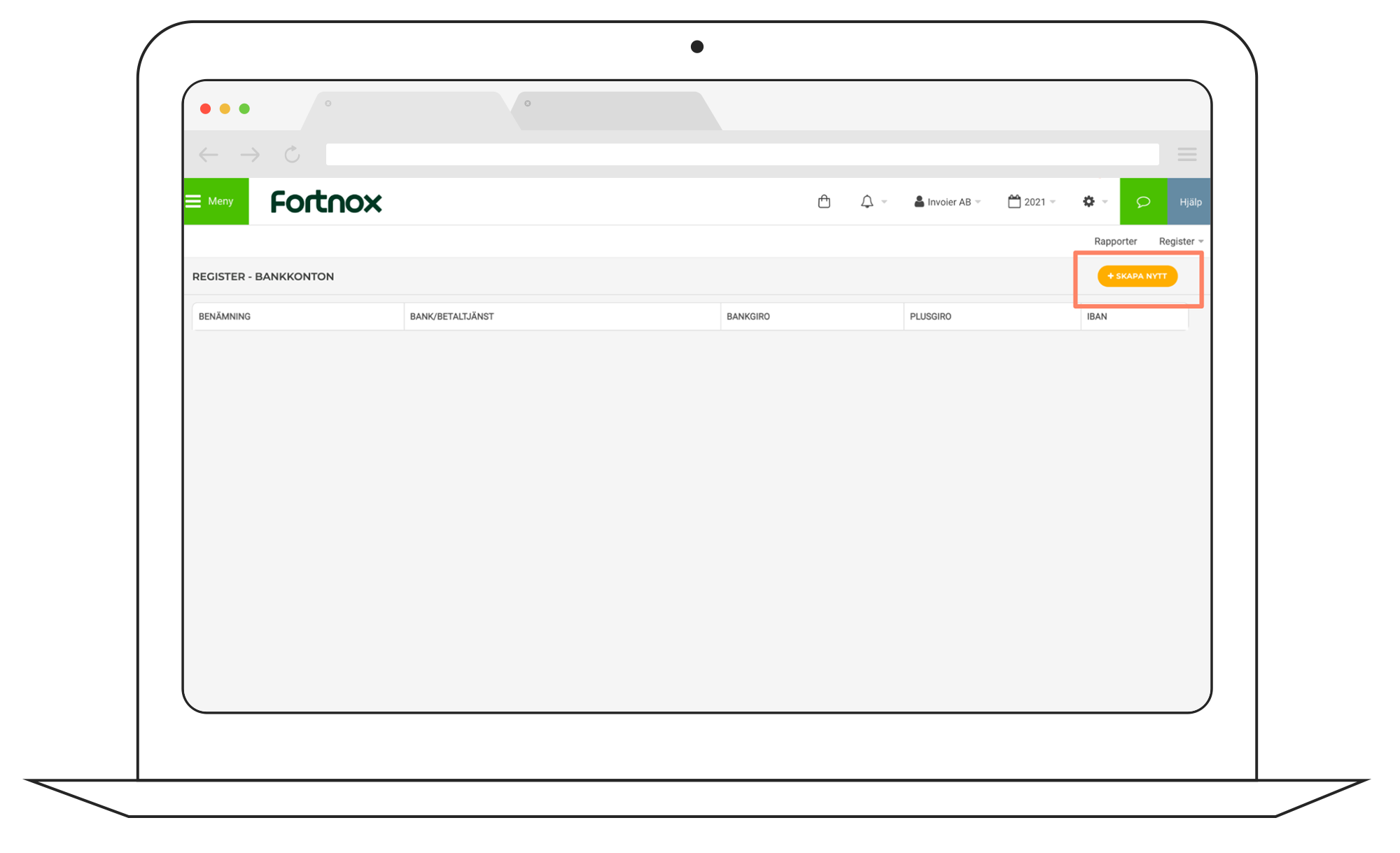
Click on “Create new”
Step 3
Please enter the payment details previously received in the welcome letter from Invoier (found in the section regarding the Transfer Text).
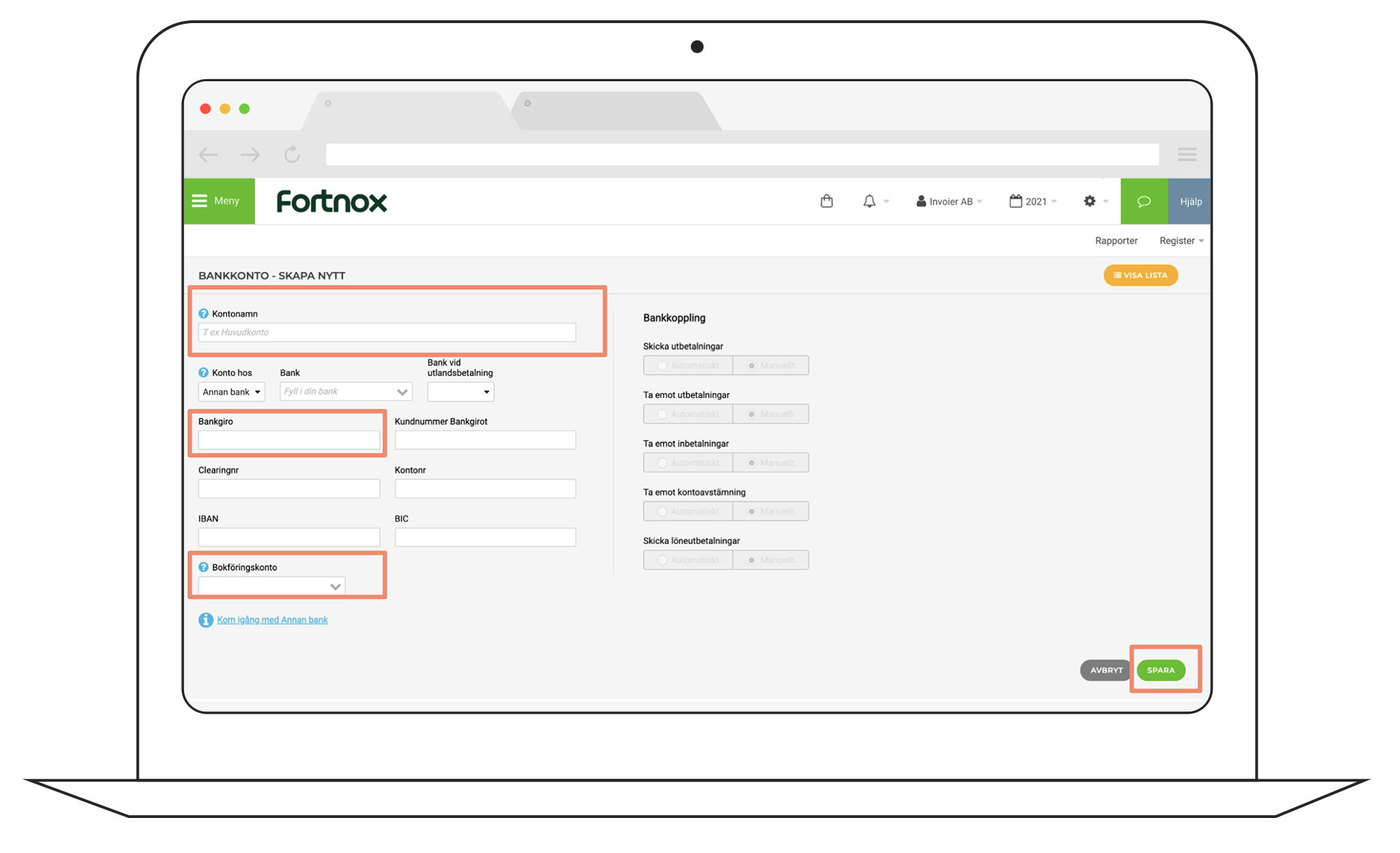
Complete only the following 3 fields:
- Account name: (proposal “Invoier invoice financing”)
- Bankgiro (the bankgiro specified in the welcome letter under the paragraph “Transfer text”).
- Accounting account: (Optional. Choose the one that best fits the service/product you are invoicing for, and to which your transactions should be posted. E.g. “1930, 1940”)
Then click Save
Step 4
Click on Register again and select Transaction accounts
Step 5
Select the newly created account as “Customer invoice default account” (used on the occasions when you sell the majority of your ledger via Invoier's marketplace).
Then click Save.
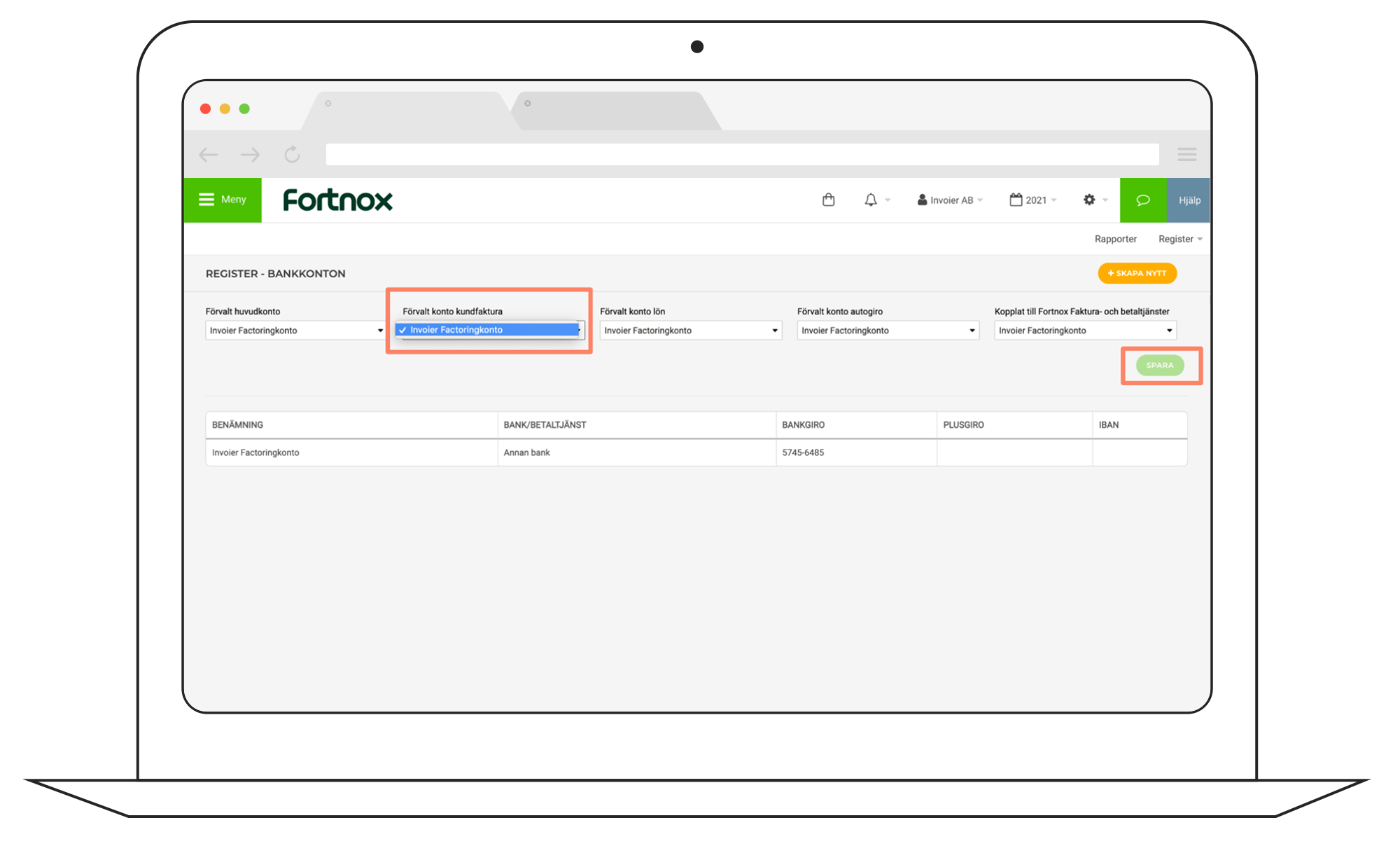
It is recommended that you create all invoices that are to go through us at the same time, and then change back to your bank giro as the default once they are done and sent to us.
Add transfer text to invoice in Fortnox
Step 1
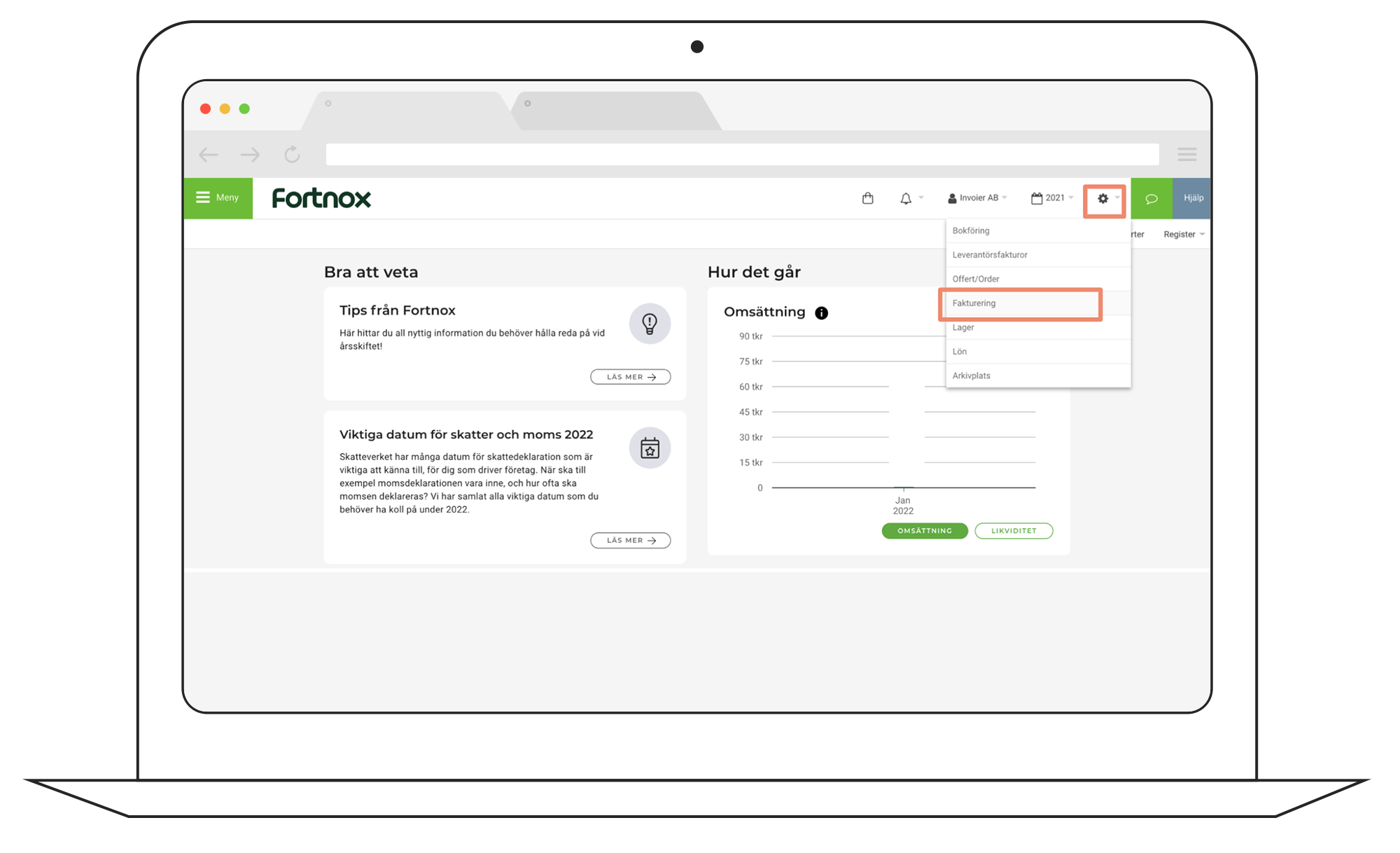
Click on cog in the top right-hand corner, then selectInvoicing
Step 2
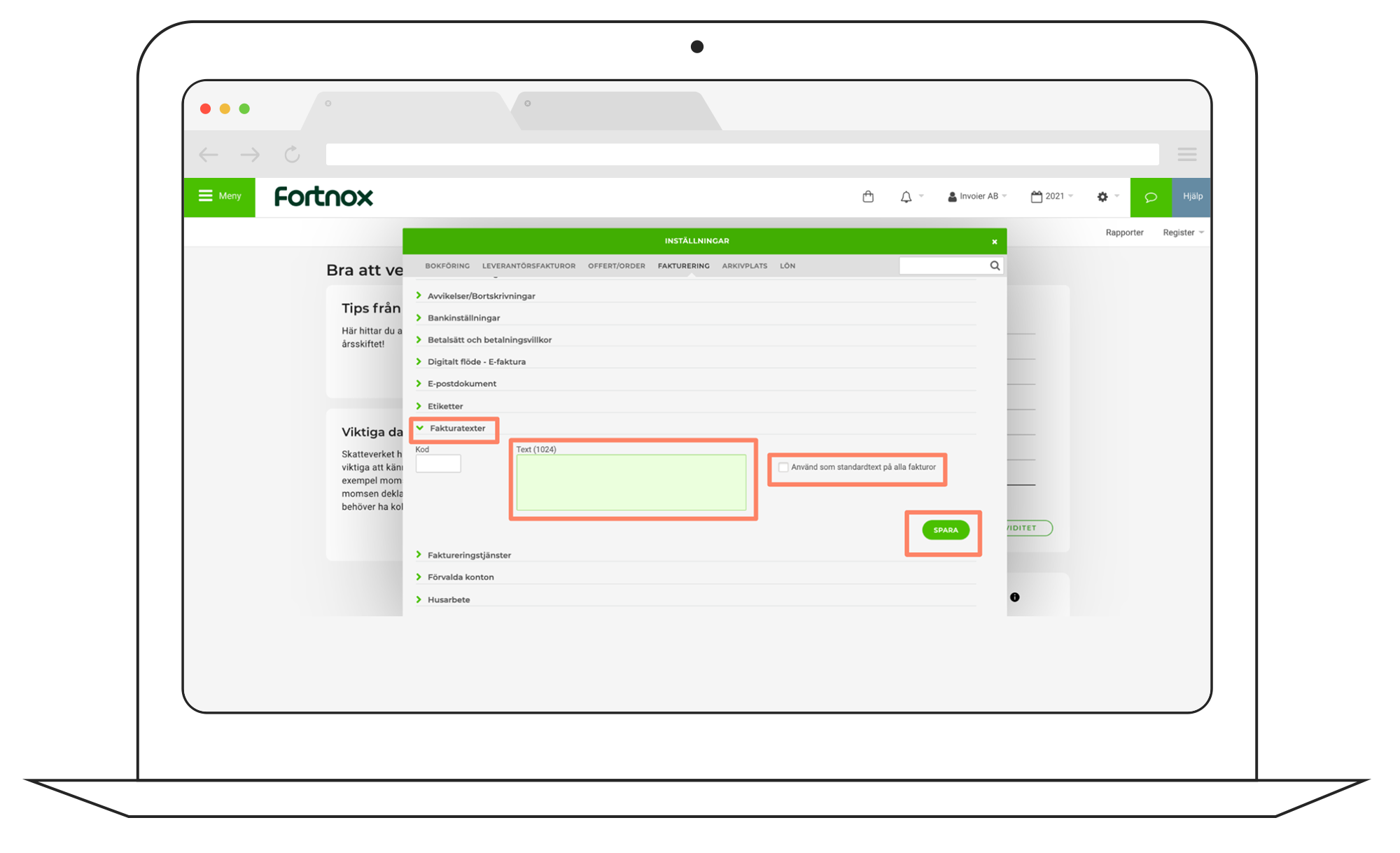
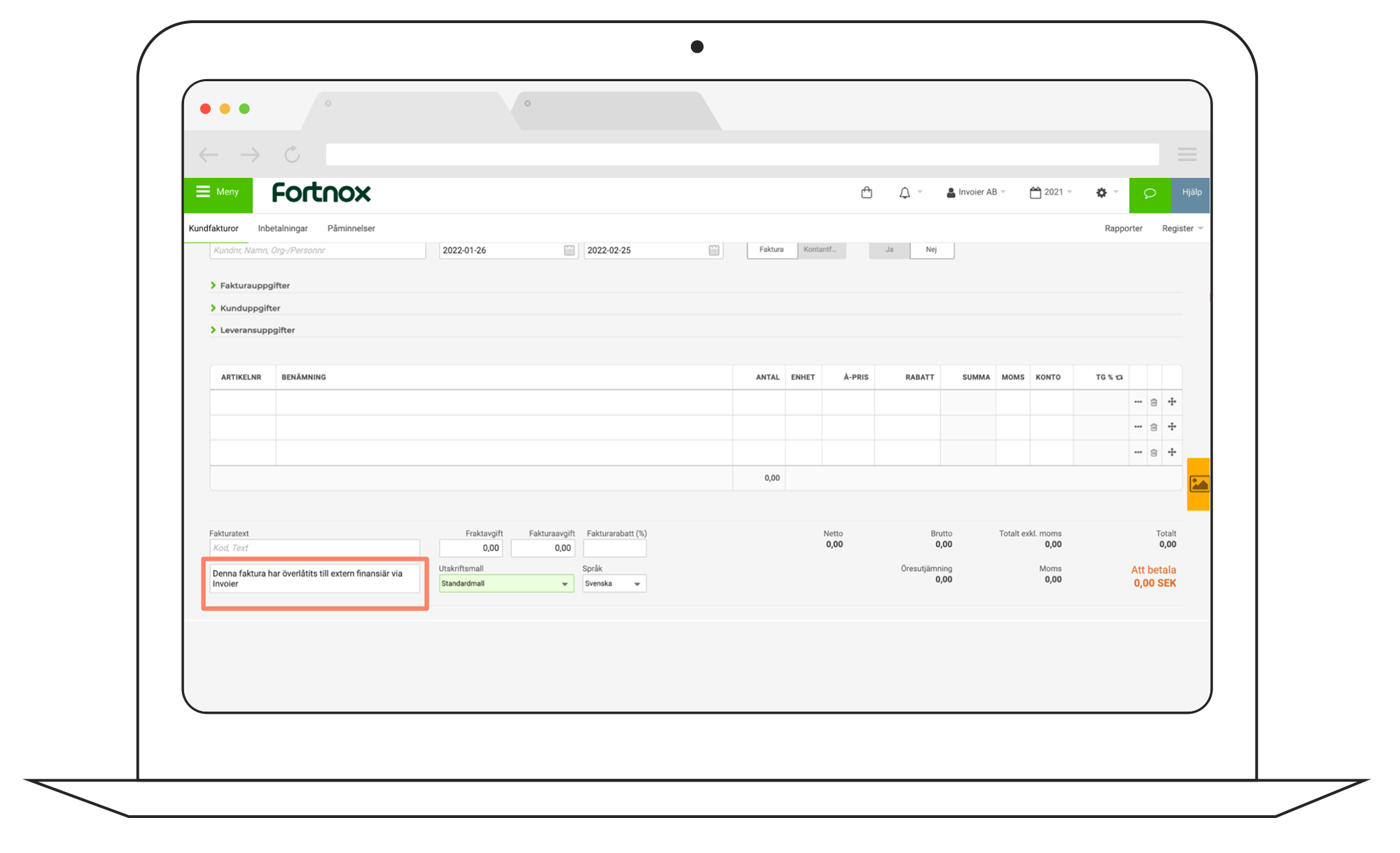
Select Invoice Details and enter the assignment text specified in the welcome document you previously received from Invoier. Then select use as standard text on all invoices, and click on Save
The text will now automatically appear on future invoices when you create new invoices. When creating an invoice, you can of course adjust or remove the text if the invoice is not to be financed via Invoier.
Add Invoier as a blind carbon copy (Bcc) recipient when sending invoices
For a blind carbon copy of the invoice dispatch to reach Invoier, you need to add your specific Invoier email address (found in the welcome document on page 4) as a blind copy recipient for invoices sent to your customers. To set this up per customer, follow the steps below. (It is also possible to add this when creating an invoice, as the “Blind copy” field then appears.)
Step 1
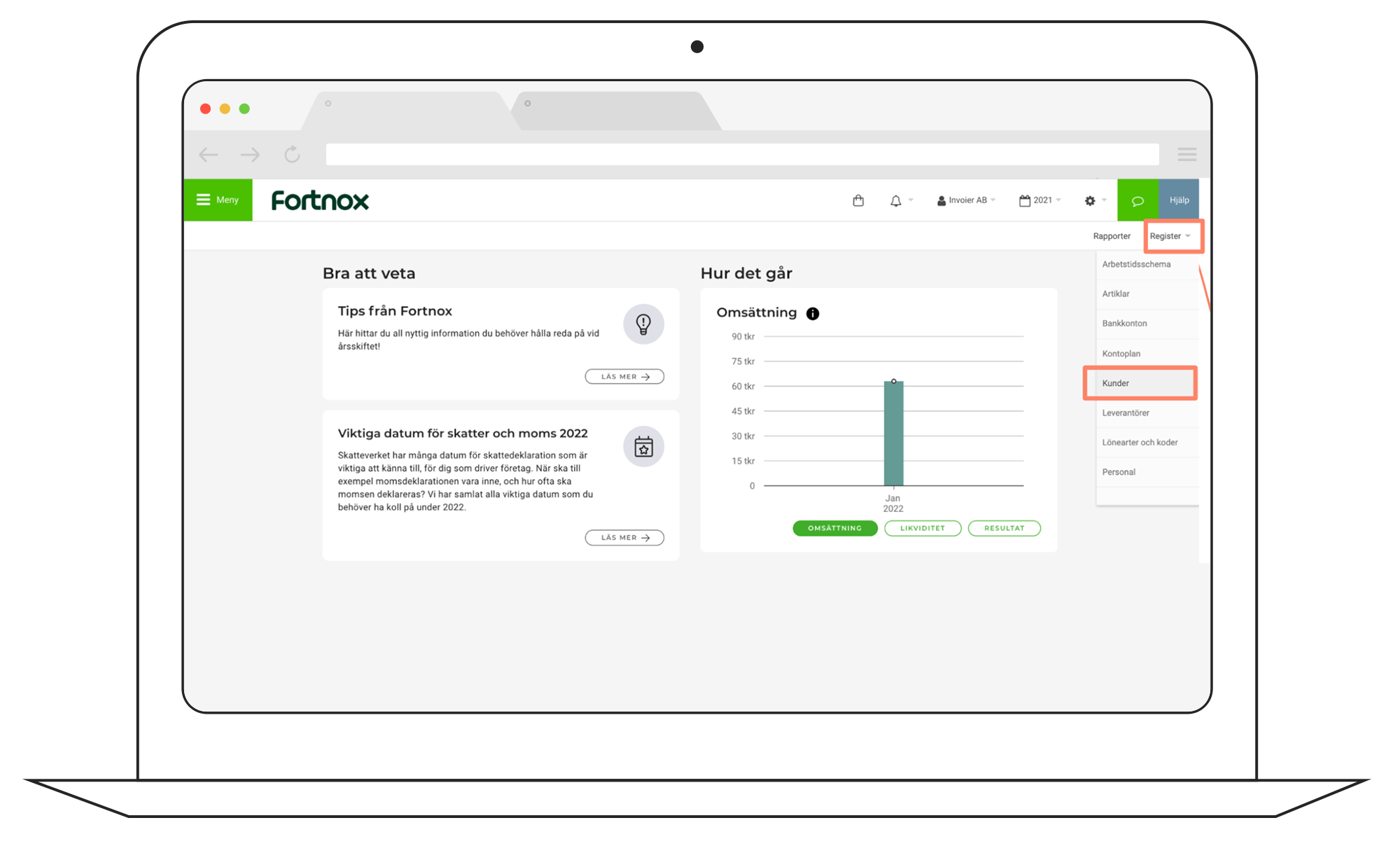
Click on Register and select Customers
Step 2
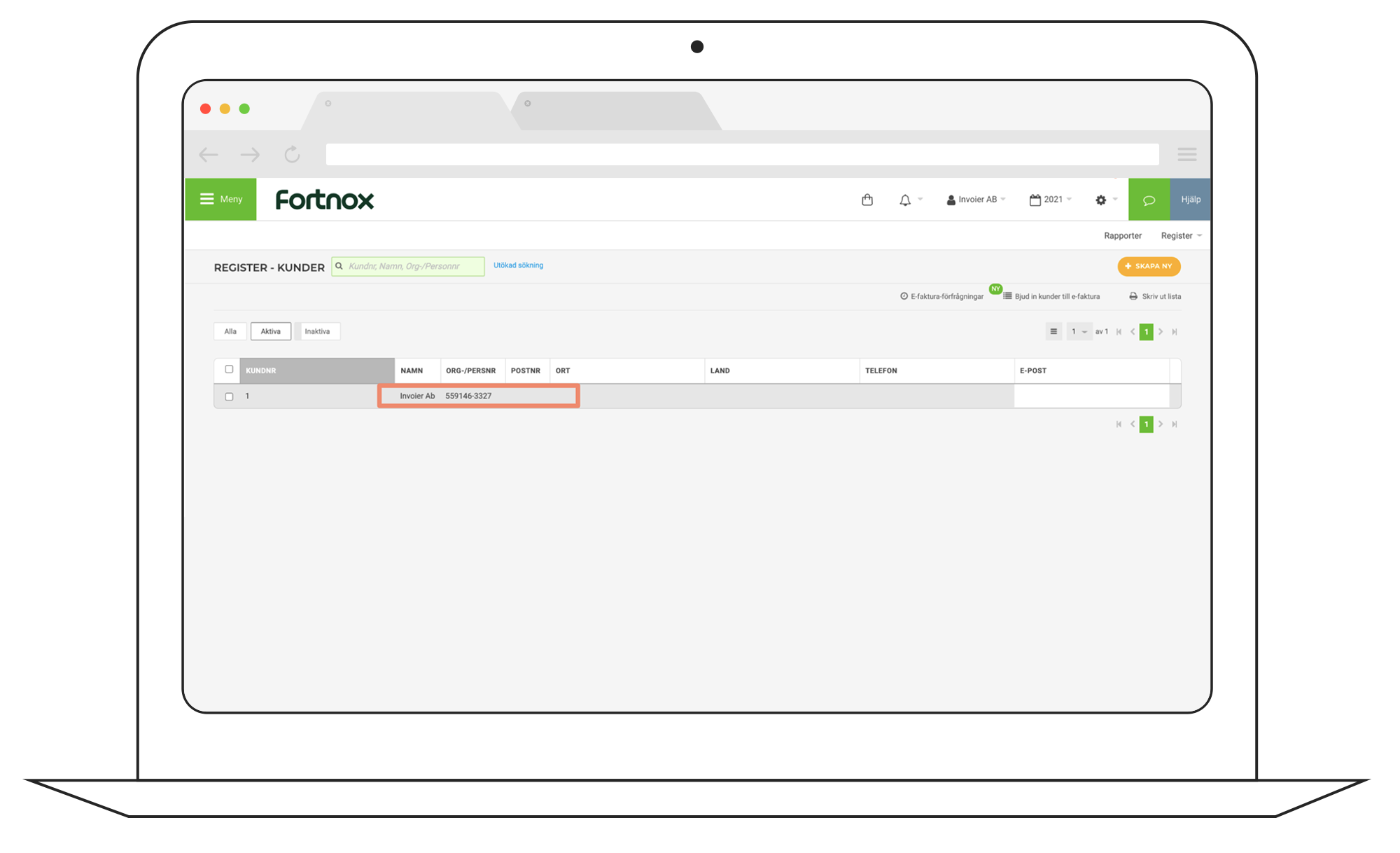
Select relevant customer from the list
Step 3
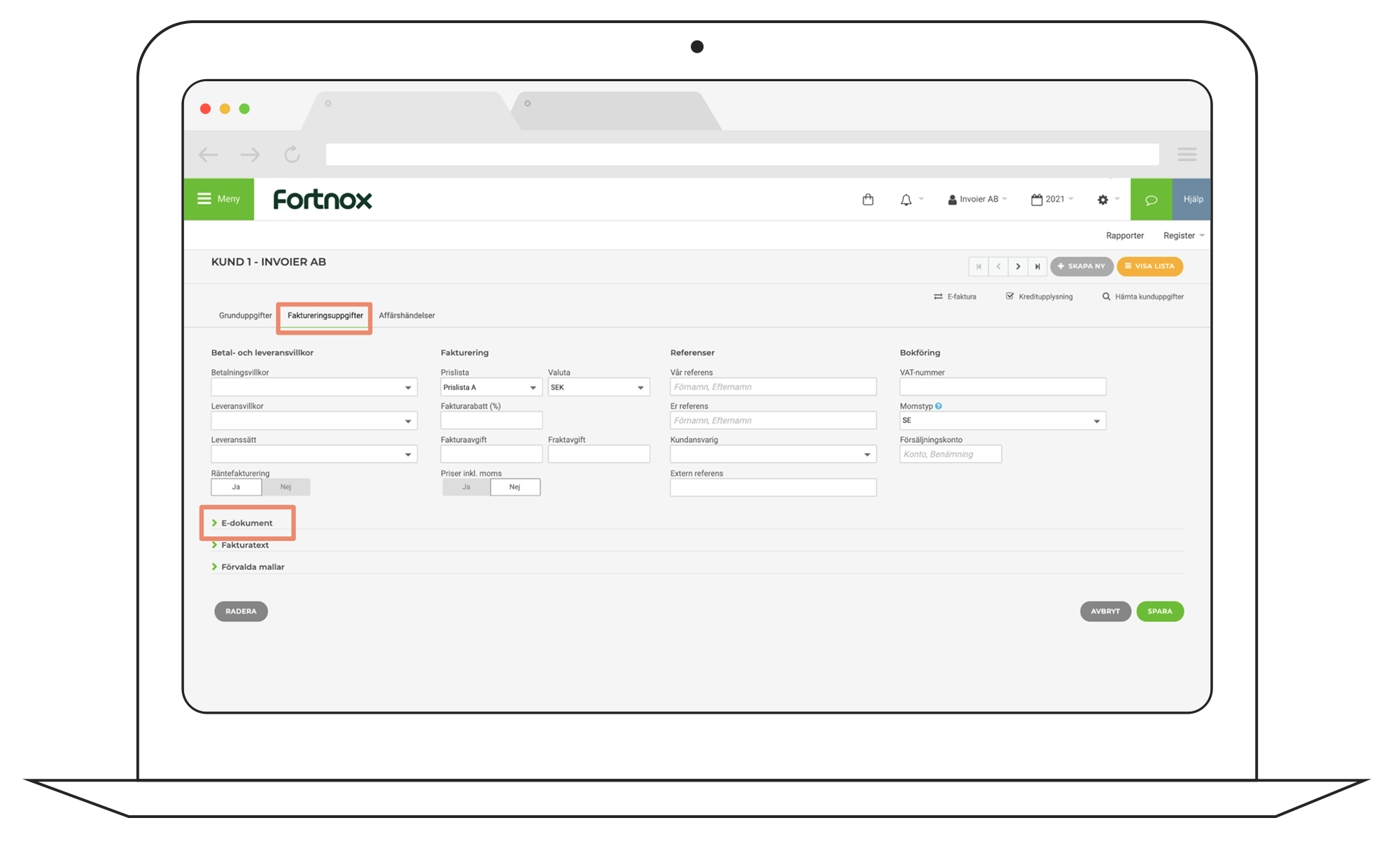
Select the tab Billing details and click on E-document
Step 4
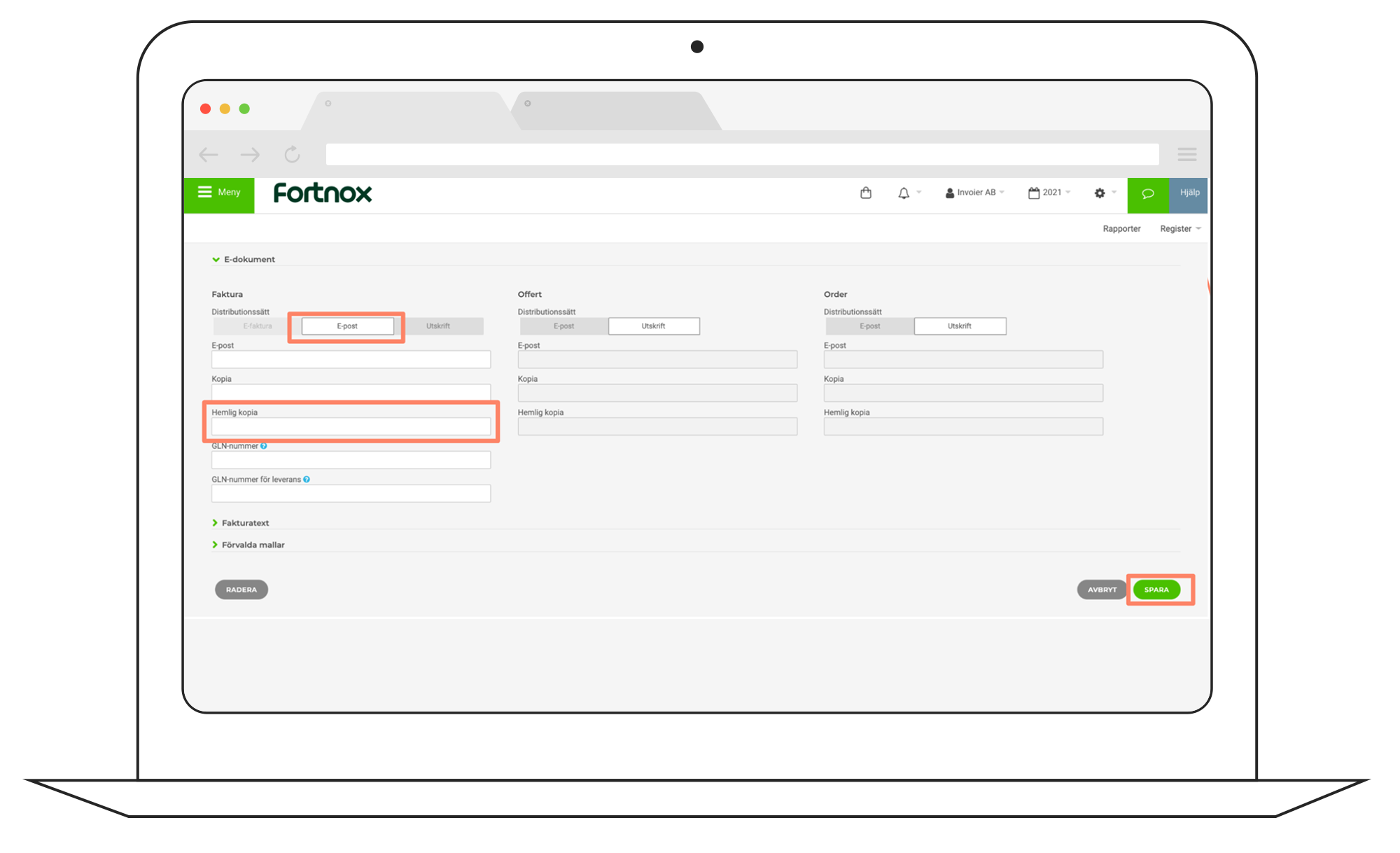
Choose E-mail and please enter the specific Invoier email address you received in the welcome document (found on page 4 of the document).
Click then on Save